I Built ROKUYO, a Simple iOS Wallpaper Service for More Mindful Days
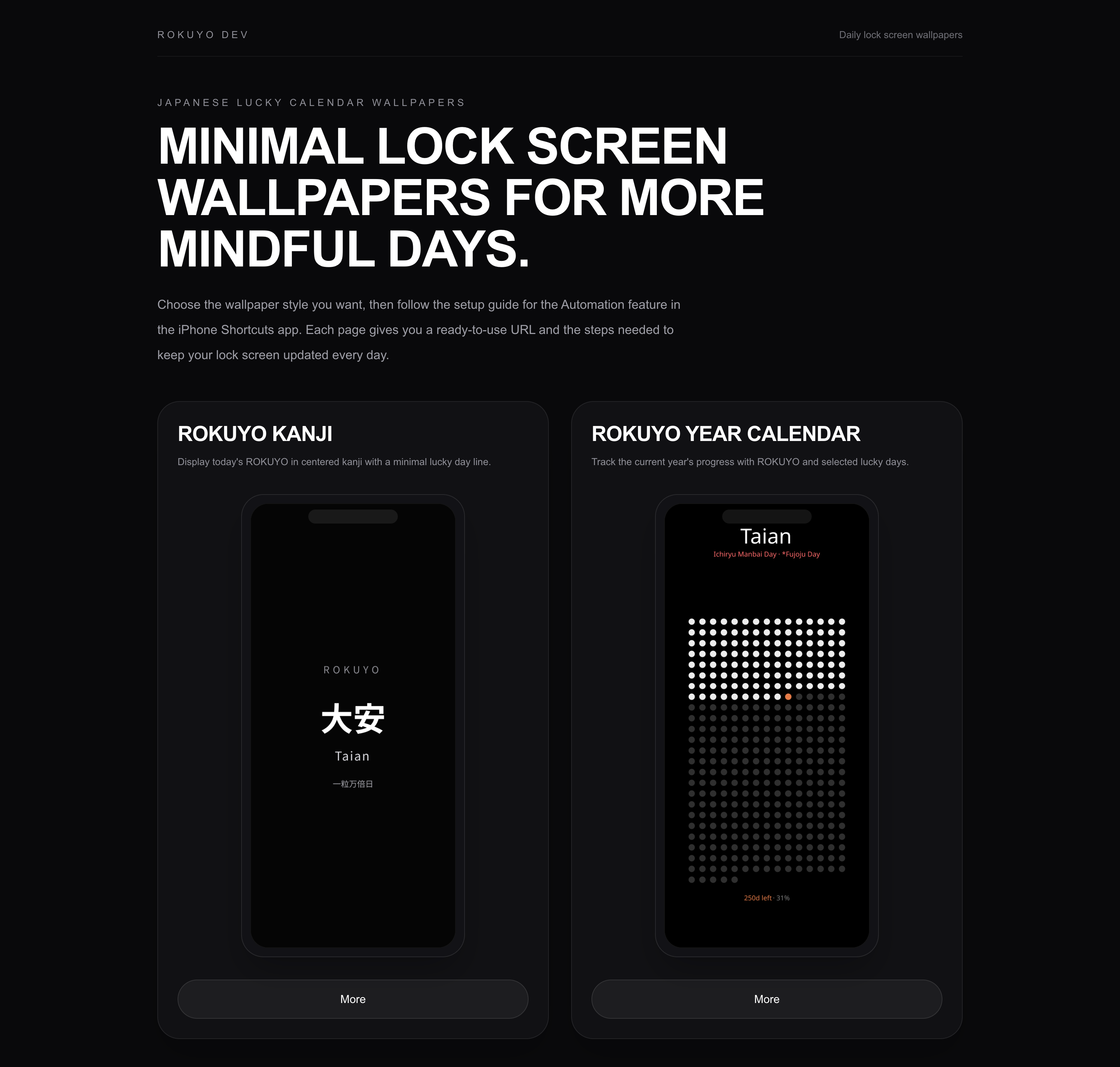
Over the past weekend — two weekend days plus one weekday — I built a website called ROKUYO (https://rokuyo.dev/).
That said, I had already created a rough base beforehand, so the actual work was more like spending two to three hours each day on layout adjustments, testing, and final tweaks.
I paired with generative AI along the way, kept the momentum going, released it, and even bought the domain.
What can you do with it?
ROKUYO (https://rokuyo.dev/) currently offers two types of wallpapers. Both are, of course, free to use.
- ROKUYO Calendar - A wallpaper that displays today’s date, the rokuyo in kanji, and lucky days such as Ichiryumanbaibi.
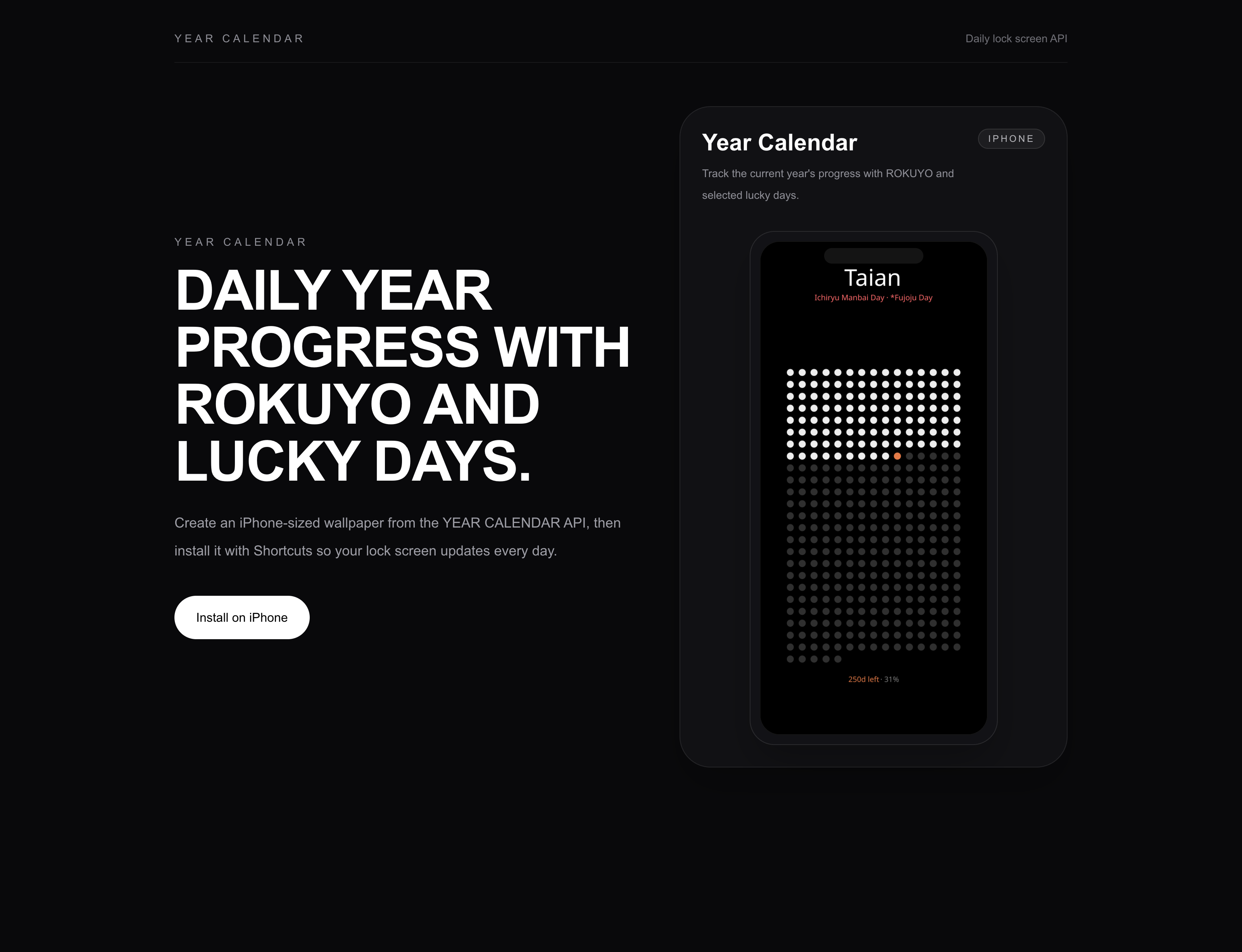
- ROKUYO Year Calendar - A minimalist year calendar wallpaper that shows the progress of the year and the number of days remaining, starting from today’s date.
① ROKUYO KANJI Calendar - A wallpaper that displays today’s date, the rokuyo in kanji, and lucky days such as Ichiryumanbaibi
https://rokuyo.dev/rokuyo-kanji-wallpaper
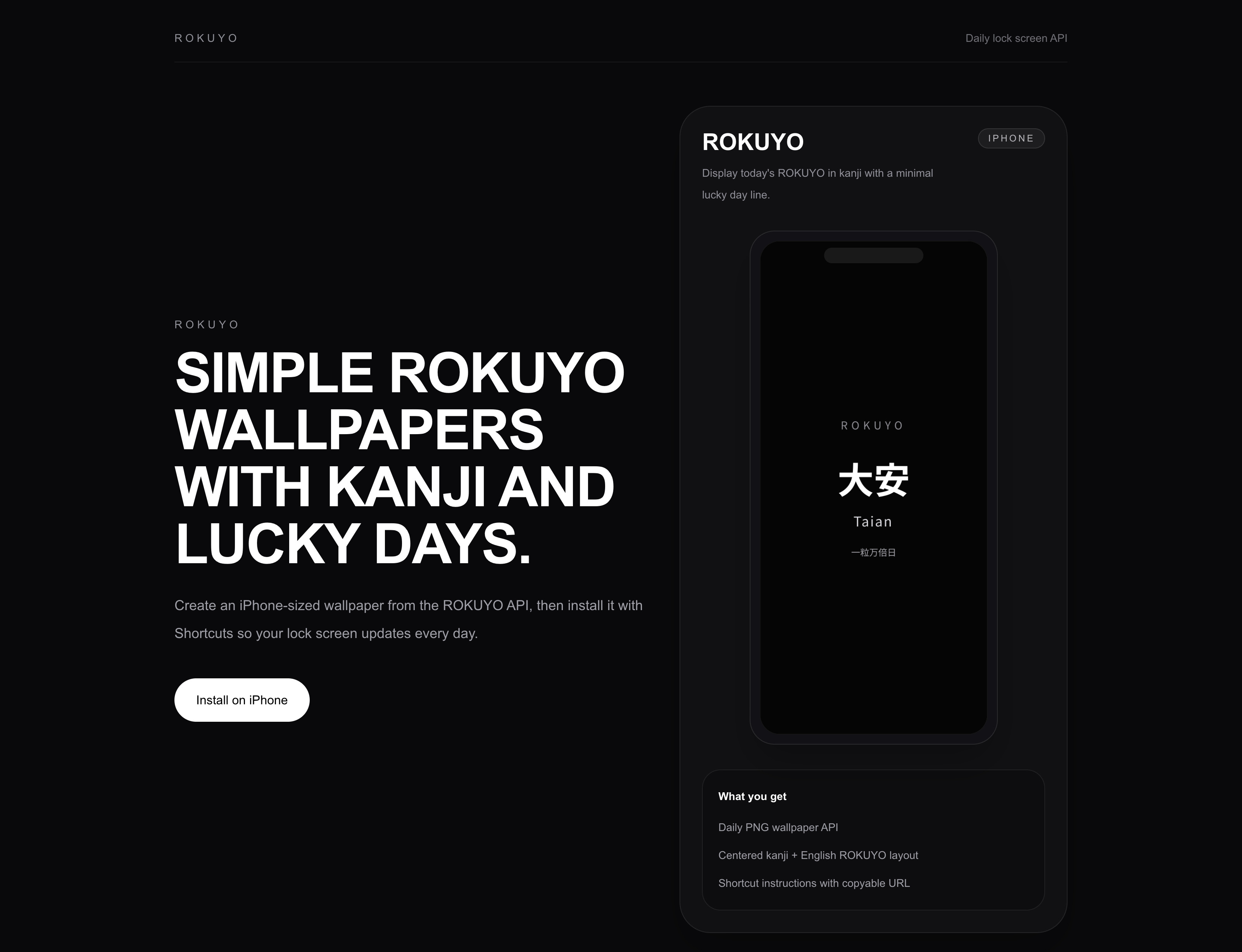
② ROKUYO Year Calendar - A minimalist year calendar wallpaper that shows lucky days, the progress of the year, and the number of days remaining
https://rokuyo.dev/year-calendar
How to use and set it up
Step 1
First, open ROKUYO (https://rokuyo.dev/) on your iPhone.
Tap the Install on iPhone button. You will then be taken to the setup screen.
In the iPhone Model section, select your iPhone model. Then, in the Generated URL section, tap the Copy URL button.
Step 2
Open the Shortcuts app on your iPhone and go to the Automation tab.
Next, tap the + button in the top-right corner to create a new automation.
If this is your first automation, tap Create Personal Automation.
Choose Time of Day, then configure it as follows and tap Next.
- Time: 6:00 AM
- Any time is fine, but I recommend choosing a time when you can check it after waking up.
- Repeat: Daily
- Run Immediately
Step 3
Create a new shortcut
After setting the time, you will be taken to the next screen.
Tap New Blank Automation.
Depending on your iOS version, this may appear as Create Blank Automation instead.
3-1. Get Contents of URL
Type URL into the search bar.
You should see an action called Get Contents of URL with a green icon. Tap it.
Then tap the blue URL text so you can enter text there. Paste the URL you copied from the Generated URL section in Step 1.
3-2. Set the wallpaper
Next, tap the action search field below and type Wallpaper.
You should see an action called Set Wallpaper Photo with a light blue icon. Tap it.
Tap the blue Wallpaper text, and you will be asked which wallpaper you want to use. Choose your preferred wallpaper. You should then see something like Wallpaper 3 set in the shortcut.
3-3. Set it for the lock screen only
Then tap the blue text that says Lock Screen, Home Screen.
Uncheck Home Screen, so that only Lock Screen remains selected. Then tap Done.
You do not need to change the URL field here.
Important note:
Next to Set Wallpaper Photo, there is a small arrow icon inside a circle. Tap it, and make sure to turn off the following options:
- Show Preview: change from On to Off
- Crop to Subject: change from On to Off
Finally, tap Done in the top-right corner, and you’re all set.
Why I made this
I created this service because I wanted to treat each passing day with a little more care.
Have you ever set vague goals at the beginning of the year, only to realize later that you haven’t really made progress on them?
Something recently reminded me again that time is finite. Since then, I’ve felt strongly that I want to live each day without regret.
I also sometimes find myself wondering, “When is this year’s Ichiryumanbaibi again?”
I’m not overly superstitious, but if there’s a small bit of good luck I can carry with me, I’m the kind of person who would like to carry it.
I’ve bought planners that show the rokuyo, and I occasionally check calendars for lucky days. But I also felt that building a habit of actively going out to look for that information every time was a little too much friction.
So I wanted to make something that quietly brings that information to me instead.
Inspiration and refinement
I came across a web service shared on social media by an overseas minimalist tech creator.
I was struck by both the creativity and the beautifully refined design.
What impressed me even more was that the idea worked through Apple’s native iOS Shortcuts app, while the URL it accessed was hosted on Vercel.
That combination felt simple, elegant, and very inspiring.
If you have any feedback or questions, feel free to reach out to me on X at @acotie or through the Contact page: https://acotie.me/contact/
That said, I may not be checking social media or email very actively, so LinkedIn messages might be the fastest way to reach me.